
1. Select Settings from the home screen of your iPhone:

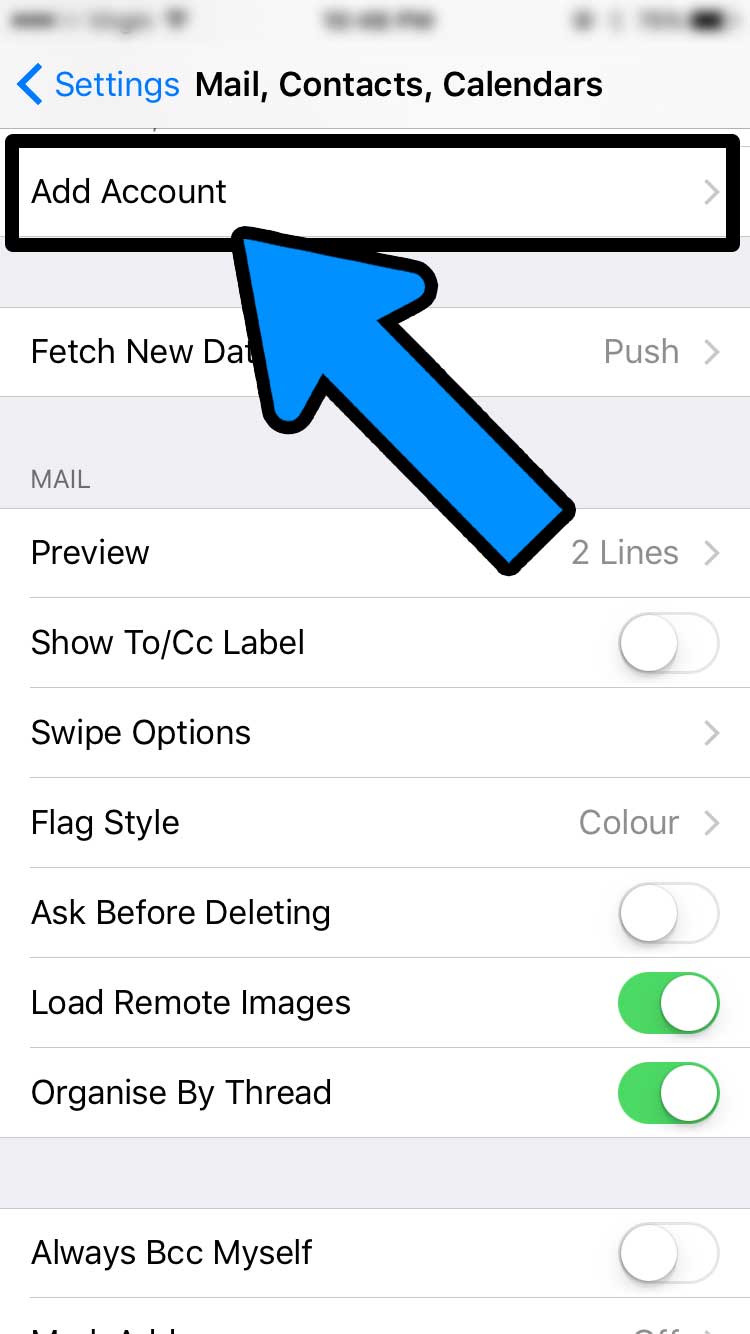
2. Select Mail, Contacts, Calendars and click Add Account

3. Select Other from the list of account displayed

4. Select Add Mail Account

5. In the New Account menu, you will need to specify the following records:
- Name – your name (will appear as sender name)
- Address – your full email address (supplied via email)
- Password – the password for this email address (supplied via email)
- Description – lets you specify any description (we suggest you use your email address or domain name)
Once you have entered the above details click Next


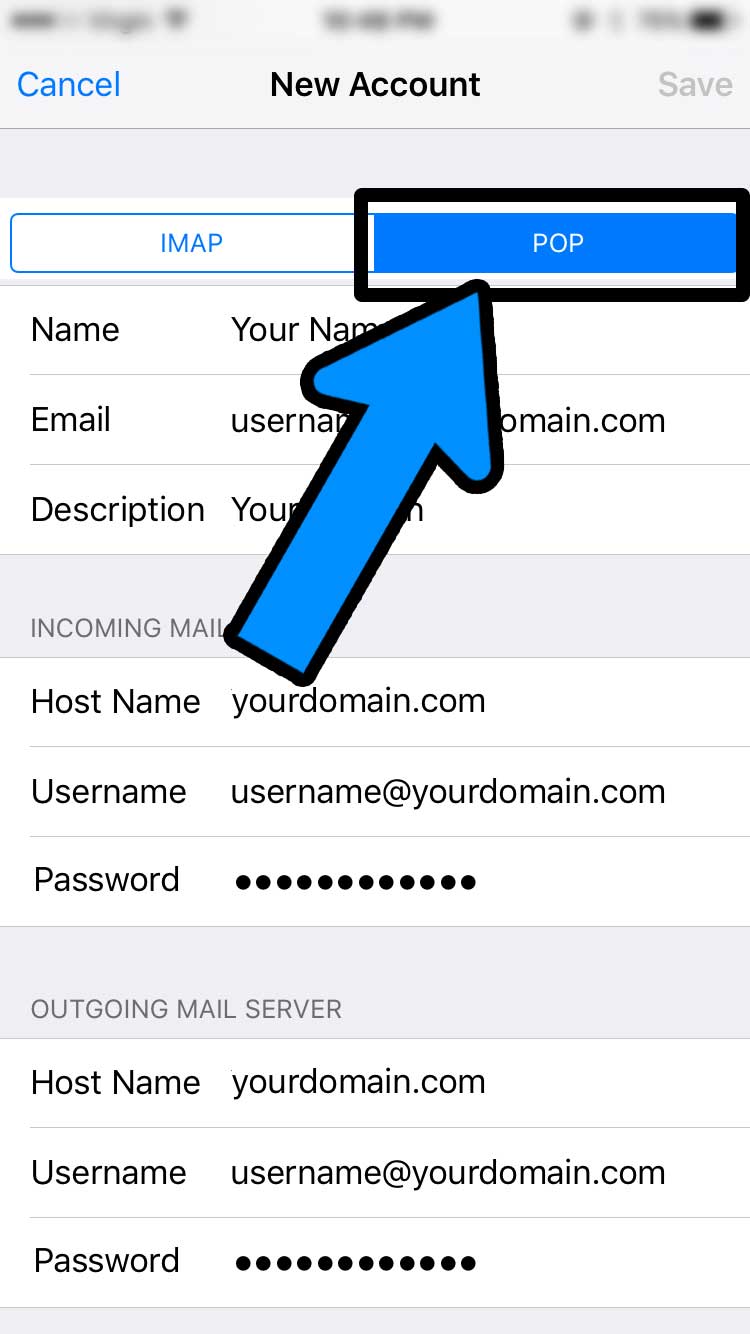
6. Select protocol type: POP. Your selection will be highlighted blue.
Enter the following details:
Name, Email and Description: should already be filled in
INCOMING MAIL SERVER
Host name: yourdomain.com
Username: username@yourdomain.com (your full email address)
Password: password for your email
OUTGOING MAIL SERVER
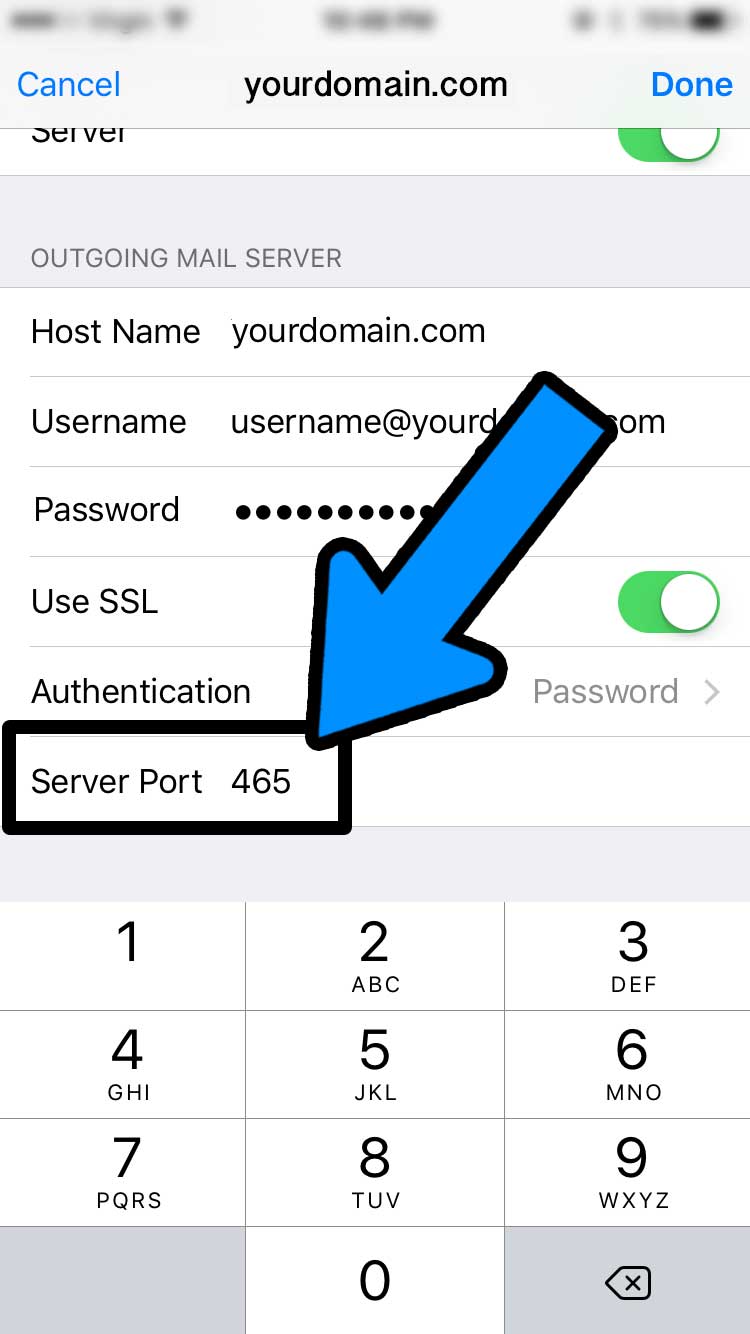
Host name: yourdomain.com
Username: username@yourdomain.com (your full email address)
Password: password for your email
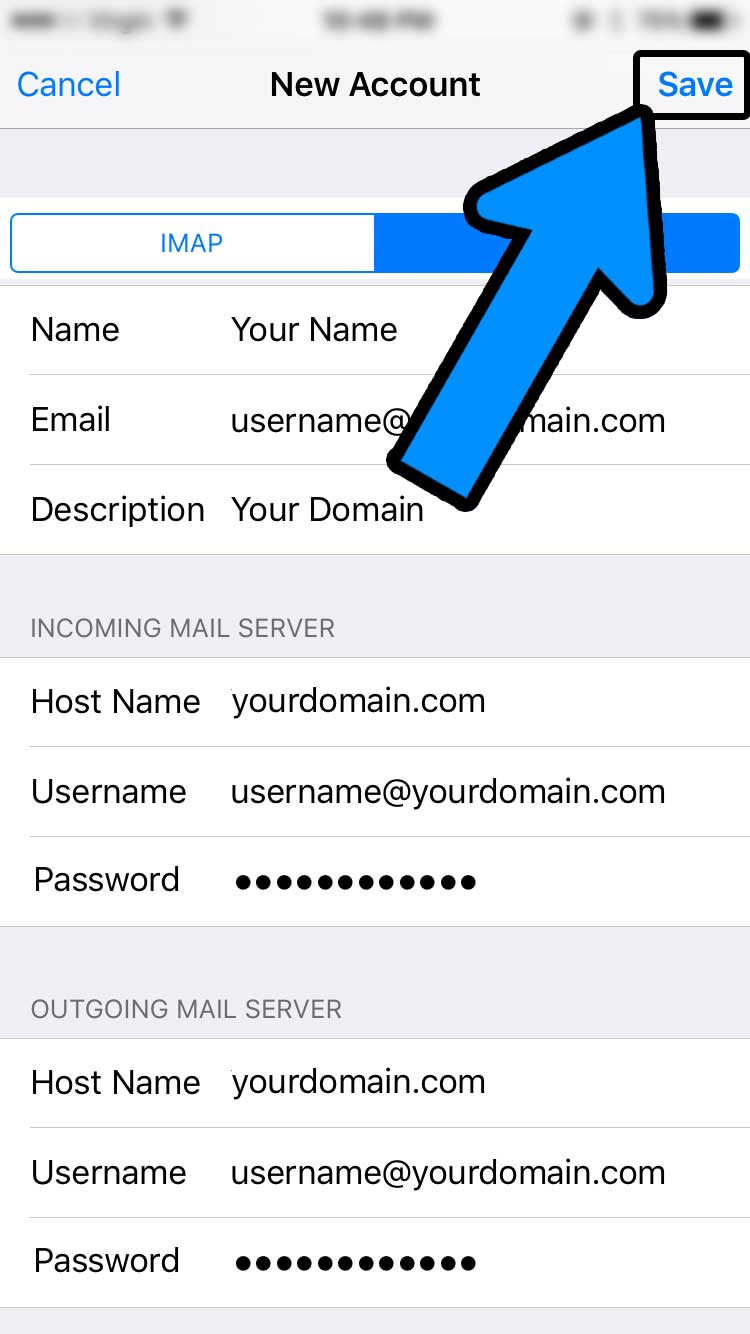
Click Save and wait while the system verifies the email account.

7. When the verification has finished, you’ll be redirected to the Mail, Contacts, Calendars screen. Choose your newly created account there.

8. Scroll down and select SMTP under Outgoing Mail Server.

9. Select your new server from the list. It should appear at the top under Primary Server.

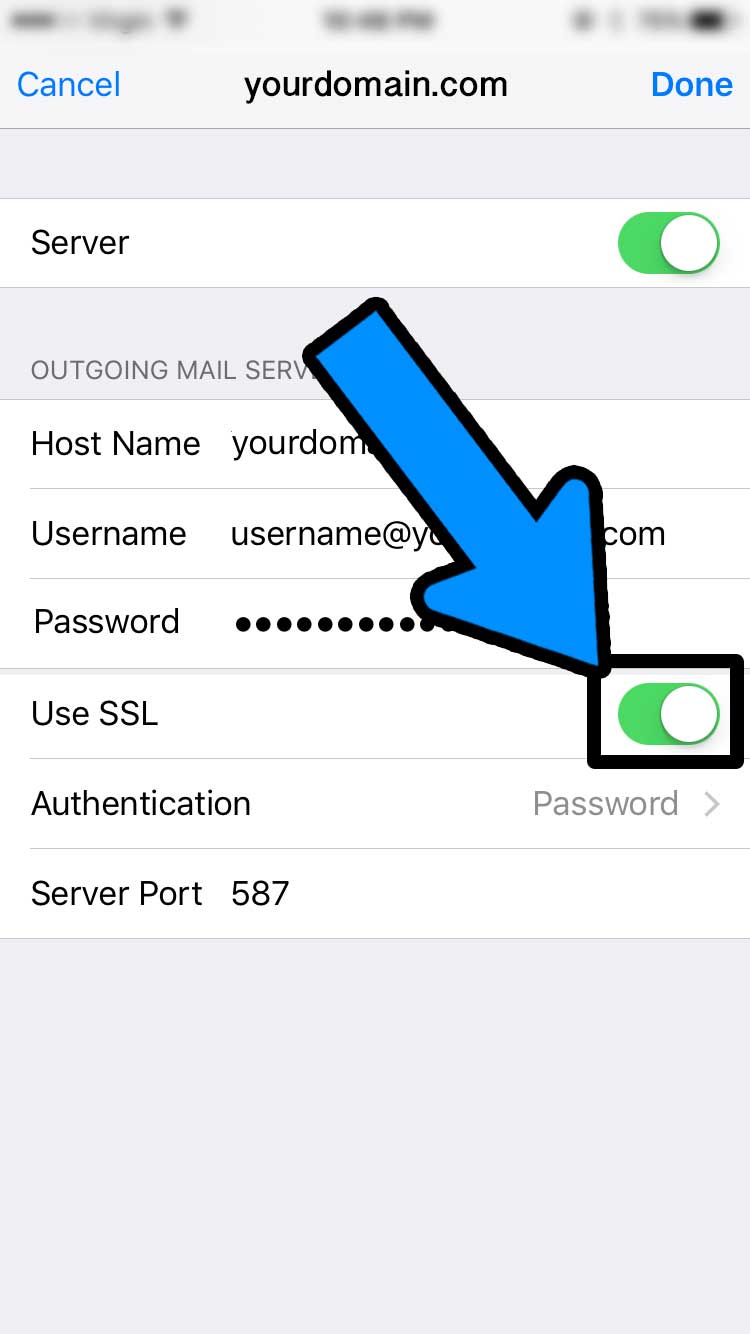
10. Ensure that Use SSL is switched on; the slider button should be highlighted green.
Click on Server Port and change the number to 465.
Click Done. The account will now run the verification process (this may take a few minutes to complete).

11. Once verified, you will be taken back to the list of SMTP servers. You can now quit out of settings and start using your Email on your iPhone! Great work!
CONTACT US
We’d love to hear from you, so don’t hesitate, contact us today!
[follow_social2]
[contact-form-7 id=”128″]